
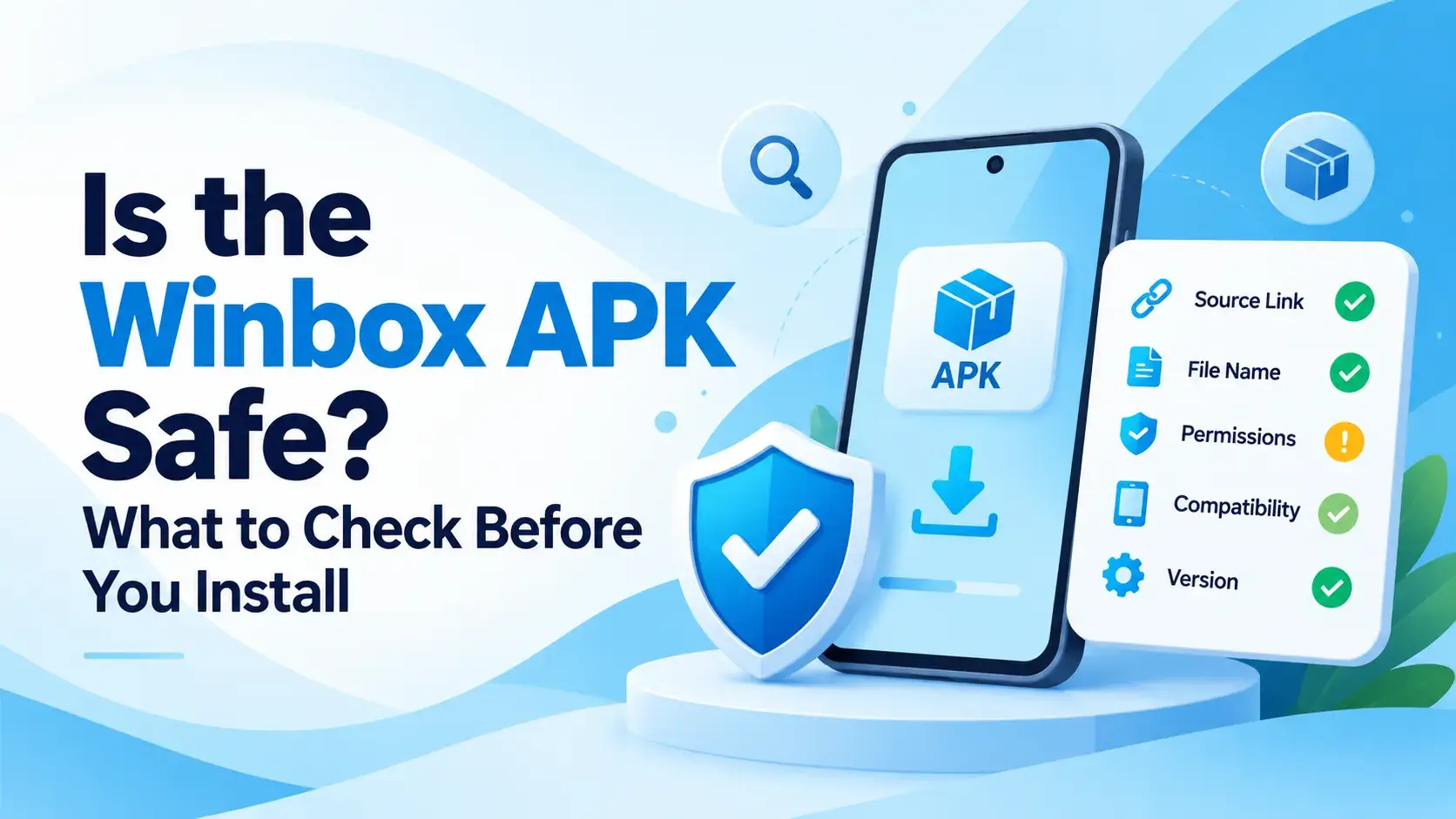
Why this is worth a few minutes
An app installed from the Play Store goes through Google's own review before it reaches you. An APK installed from outside the Play Store skips that step, so whatever checking happens is either done by your device at install time or by you beforehand. Neither is automatic in the way a Play Store install is.
None of this means sideloading is unsafe by default — plenty of legitimate apps are installed this way. It means the handful of checks below are worth doing, the same way they'd be worth doing for any APK, not just this one.
Where the file actually comes from
This is the check that matters most, and it's the one the Winbox APK download page already leads with: get the file from a source you already trust, not a copy shared through an unsolicited message, a comment, or an ad. A mirror or a third-party file host can repackage an APK with something added, and there's no way to tell just by looking at the file afterward.
If you already have a copy from somewhere else, that doesn't change — the same question applies: do you actually trust where it came from, or are you assuming it's fine because it looks right?
Check the address before you download
Before the file itself, the page you're downloading from is worth a glance. A padlock or "https" at the start of the address means the connection to that page is encrypted, which is a basic, general check for any download, not something specific to APKs. It doesn't by itself prove the file is safe — it only means the connection to that page hasn't been tampered with on the way.
A page that looks slightly wrong — a misspelled address, a design that doesn't match, or one reached through a redirect you didn't expect — is a reason to stop and double-check before downloading anything from it.
Avoid "modified" or "unlocked" versions
Forums and third-party app sites sometimes offer a "modded", "cracked" or "unlocked" version of an app, promising something the original doesn't. Modifying an APK means repackaging it, and repackaged APKs are a well-known way malicious code gets added to an otherwise ordinary app — this is general Android security knowledge, not specific to any one app.
The safest version of any APK is the one distributed by the source you trust, unmodified. There's no legitimate reason a gambling app would need a "modded" version, and no such version is covered by anything on this site.
Read the permissions before you accept them
Android shows you what an app is asking to access, either during install or the first time it needs something. The download page is upfront that it doesn't list which permissions Winbox specifically requests, because that hasn't been verified here — so this is general advice, not a Winbox-specific list.
- Notice what's being asked for, the same way you would for any app.
- A permission that doesn't obviously relate to what the app does (contacts, location, camera, for something that doesn't need them) is worth a second look before you accept.
- You can usually change permissions later in the device's app settings if you accepted something you didn't mean to.
Let Google Play Protect do its job
Most Android devices run Google Play Protect in the background, and it can scan an APK you install from outside the Play Store, not just apps from the Play Store itself. This is a general Android platform feature, on by default on most devices — not something specific to this site or to Winbox.
If Play Protect flags a file or asks to scan it, that's worth reading rather than dismissing. Turning Play Protect off specifically to get past a warning removes a layer of checking that exists for exactly this situation.
What the install screen itself shows you
When Android is about to install an APK, it shows the app's name and icon before you confirm. That's worth a glance: it should say Winbox and show the Winbox icon, not something unrelated or generic. This is the same install screen Android shows for any APK — it's a general check, not a Winbox-specific feature.
The download page's own installation troubleshooting covers what to do if the file won't open or the install is blocked — that's a separate, mechanical problem from the safety checks here.
After it's installed
The checks don't stop once the app opens. Sign in through the app itself, not through a link someone sends you claiming to be a shortcut. Never enter a password, a one-time code or payment details anywhere except the screen you opened yourself.
Once you're signed in, general access questions and troubleshooting are covered on the Winbox login page, separately from the install checks on this page.
What this site hasn't checked
To be direct about the limits here: this site has not checked the file's cryptographic hash, its digital signature, or run it through a virus-scanning service, and it doesn't publish a result for any of those because none has been verified.
The same goes for the specifics the download page already says it hasn't confirmed: the minimum Android version, the approximate file size, the current version number, and the release date. None of those are guessed at here either.
If something feels off
If the install itself won't finish — the file won't download, won't open, or the app won't launch afterward — that's a mechanical problem, and Winbox Not Working? What to Check First walks through it separately from the safety checks on this page.
If you're not sure whether you need the app at all, the browser (H5) route needs no install and reaches the same account — Winbox App or Browser (H5)? What's Different and How to Choose compares the two. And if something about this website itself looks wrong, Getting Help with Winbox: Where to Go for What covers where that belongs.
Don't have an account yet?
Installing the app doesn't create an account by itself. If you don't have one yet, Winbox registration is a separate step, and it works the same whether you register before or after installing the app.
Where to go next
Once the app is installed and you're satisfied with it, the rest of this site is organized from the Winbox MY homepage — game categories, tutorials, and the FAQ.
Quick questions
Has this site verified the Winbox APK is safe?
No. This site hasn't checked the file's hash, signature or scan result, and says so rather than guessing. What it can offer is general checks — source, permissions, Play Protect, the install screen — that apply to installing any APK.
Is it safe to install an APK from outside the Play Store?
It depends mainly on the source. Getting the file from a source you already trust, checking the install screen's app name and icon, and letting Google Play Protect scan it are general practices that apply to any sideloaded app, not just Winbox.
Should I use a "modded" or "unlocked" version if I find one?
No. A modified APK has been repackaged, which is a well-known way malicious code gets added to an app. The safest version is the unmodified one from a source you trust.
What if Google Play Protect warns me about the file?
Read the warning rather than dismissing it or turning Play Protect off to get past it — that check exists for exactly this situation.
The file won't download or install. Is that a safety problem?
Usually not — that's typically a connection or storage issue rather than a safety one. Winbox Not Working? What to Check First covers that separately.