
Winbox Referral: Referrer UID & QR Code
When you create a Winbox account, the app asks for a referrer. This page shows the three screens where that happens, the Referrer UID to type in, the QR code to scan instead, and a button to save the QR image.
- 3 steps
- Referrer UID WI7777BOX
- QR code + Save Image
How Winbox referral works
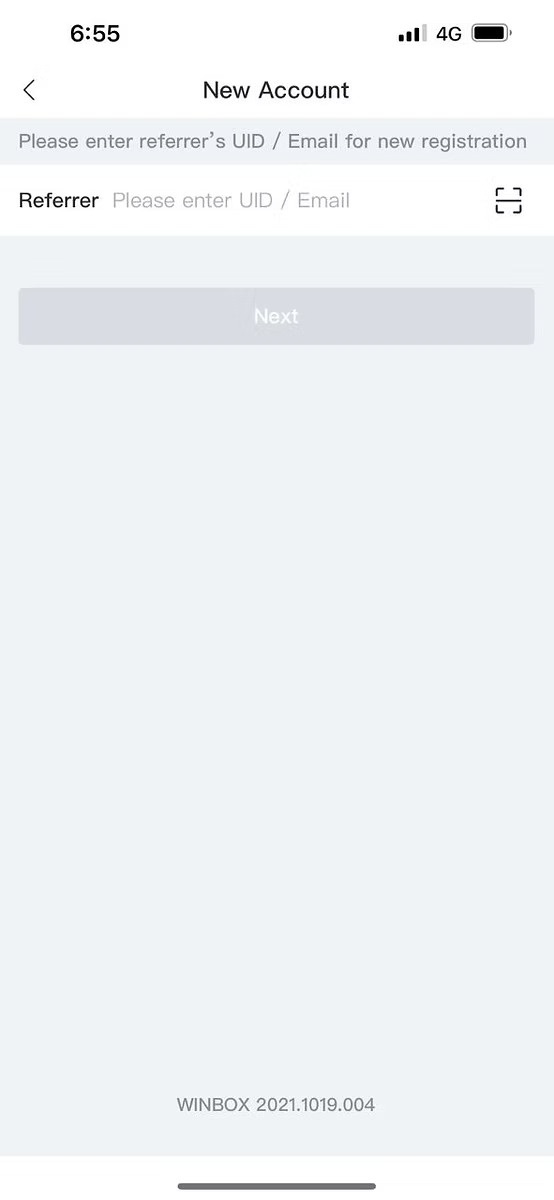
The New Account screen asks for the referrer's UID or email before anything else, with the line “Please enter referrer's UID / Email for new registration”. The prompt is labelled for new registration, so if you already have an account you would log in to Winbox instead.
The screen offers two routes: scan a QR code, or enter the referrer by hand. Steps 2 and 3 show one each. The screens don't say what a referral changes for the new account, so this page doesn't either.
Referral in three steps
Three screens from the app, in the order you meet them.
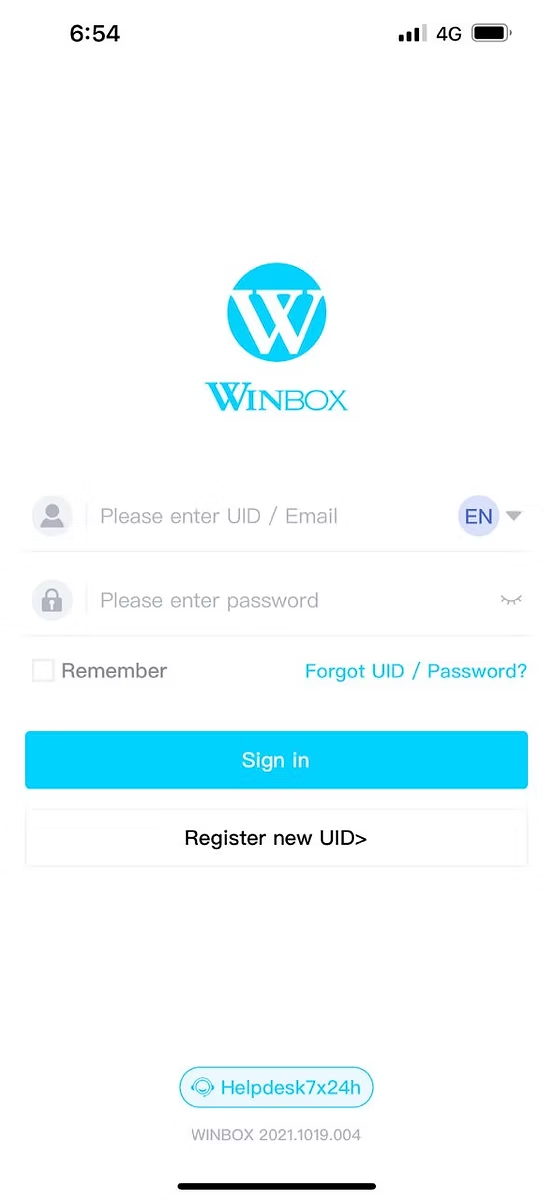
Tap Register new UID
On the app's sign-in screen, below the Sign in button, tap “Register new UID>”. This is where account creation starts in these screenshots. To register in a browser instead, the Winbox register page has the browser form, which isn't the flow shown here.
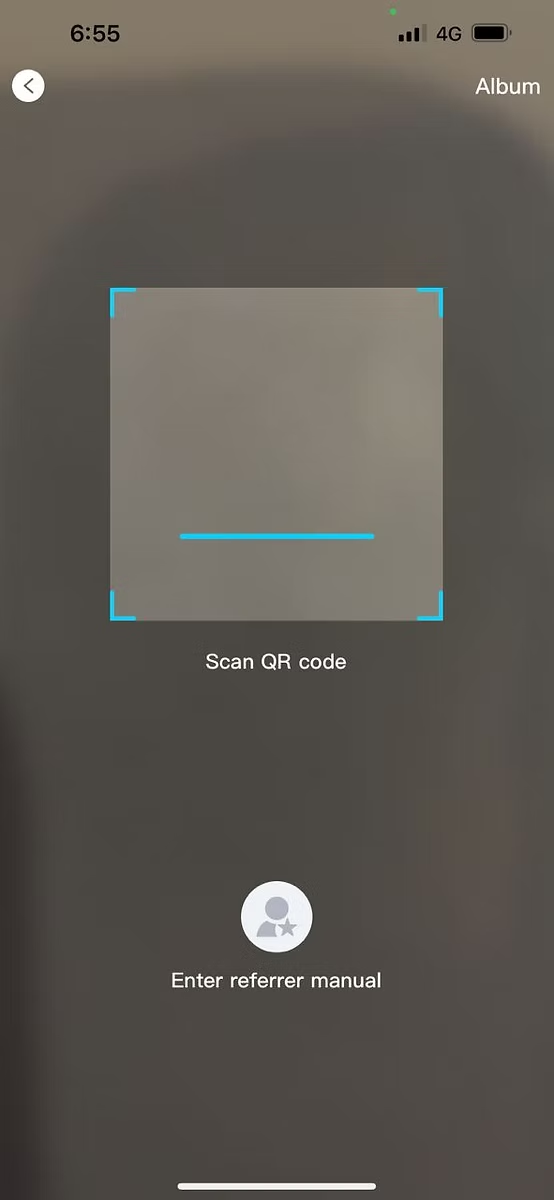
Scan the QR code or choose Enter referrer manual
The next screen is a scanner labelled “Scan QR code”, with an Album option at the top right. Below the viewfinder is a second choice, “Enter referrer manual”. Scan the QR code further down this page from another screen, or choose manual entry. Both are on the screen. The screenshot doesn't show what Album opens.
Enter the Referrer UID, then tap Next
Manual entry opens the New Account screen. Type WI7777BOX into the Referrer field, then tap “Next”. In the screenshot Next is greyed out because the field is still empty. What follows Next isn't shown.
Referrer UID
The UID supplied for this page, to type into the Referrer field in step 3.
W, I, 7, 7, 7, 7, B, letter O, X
The digit seven, four times, then B, then the letter O (not zero), then X.
The screenshots show the Referrer field empty, so the UID itself comes from the details supplied for this page rather than from a screen. Use the UID your own screen asks for if it differs.
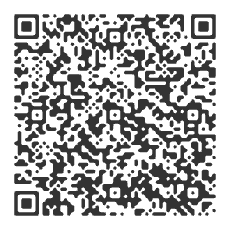
Referral QR code
This is the QR code supplied for this page, shown exactly as supplied. Scan it from another screen in step 2. Save Image stores the picture on your device; whether the scan screen's Album option can read a saved image isn't shown in the screenshots.
Save ImageDepending on the browser, a download button may not save the image. Pressing and holding the QR usually opens the phone's own image menu instead.
QR code or manual entry?
Both are on the same scan screen. Neither is shown as better than the other.
Scan the QR code
Point the scanner at the QR code above, shown on a second screen.
Enter referrer manual
Choose the option under the viewfinder, then type WI7777BOX into the Referrer field on the New Account screen.
A referrer and a promotion are separate things. Nothing here says an offer applies; the offers documented on this site, with their terms, are on the Promotions page.
If the registration screen looks different
The footer of two screenshots reads WINBOX 2021.1019.004, so they come from an older version of the app, and your screen may not match. Follow the labels your own screen shows. If you don't have the app yet, the Winbox mobile app page covers installing it. For the browser form, the registration tutorial follows it step by step.
What this page doesn't establish
- What a referral changes for the new account, if anything
- Whether any bonus or reward is attached to a referrer
- What happens after Next on the New Account screen
- What the Album option on the scan screen opens
Next
Once the account exists, the rest of what this site covers, from the game categories to the top up and withdrawal tutorials, starts from winboxmysia.com.